OGG Profile Editor
AVS Audio Converter allows you to select one of the available OGG conversion profiles as well as to set such OGG parameter combinations that are not listed in default conversion profiles. Click the OGG button on the Convert Tab to display OGG Profile Editor in the Edit Area.

OGG Profile Editor Functions
Selecting an Existing Profile
Press the arrow next to the Profile field and pick up a profile from the drop-down list. The same can be done by pressing the downward arrow below the OGG button on the Convert Tab.
Adjusting Default Settings
To create your own profile you'll need to change at least one of the parameters listed below the Profile field. You can modify the following audio track parameters:
- Codec
Defines the codec used for audio file compression. The only available is OGG Vorbis.
- Channels
Defines the number of channels in an output file. Press the arrow next to the Channels field to open the drop-down menu and select one of the available sound systems. You can use Mono (single-channel audio) in case the size of audio files is crucial as converting stereo to mono nearly halves the files size practically without affecting its quality.
- Bitrate
This is the number of bits that are transferred or processed per second. Press the arrow next to the Bitrate field to open the drop-down list and select one of the available bitrate values. As a rule, setting a higher bitrate improves the audio file quality and increases its size.
- Sample Rate
This value (also referred to as Sampling Rate or Sampling Frequency) defines the number of samples per second taken from a continuous analogue signal to make it a discrete digital signal. Press the arrow to open the drop-down list and select one of the available sample rate values. As a rule, setting a higher sample rate improves the audio file quality and increases its size.
- Sample Size
This value defines the size of samples taken from a continuous analogue signal to make it a discrete digital signal. By default this parameters is set to 16 bit and cannot be altered.
- Advanced
Use this button to configure Advanced OGG settings.
Saving Changes
Proceed directly to converting your files by pressing Convert Now! in the Output Audio Area to apply the newly introduced parameters to one particular conversion only.
Saving Changes as a New Profile
Use the Save button near the Profile field if you wish to use the newly introduced settings in future. Enter a name for the new profile in the opened Profile Name window:
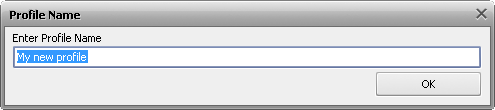
The new profile will be available in the list of default conversion profiles after you save it as described above. To delete the profile, select it with the mouse in the list of profiles and press Delete.
 Note
Note: we do not guarantee good conversion results if you change any of the default settings within
OGG Profile Editor. Therefore, it is advisable to use profile editors only in case you are well-experienced in audio conversion. We recommend you to use the
default conversion profiles if you are new to audio conversion. Our developers created profiles with well-balanced parameters that ensure good quality conversion results.